Paper Trail
Keep receipts, order confirmations, and other transactional emails out of your Imbox. Move them to Paper Trail, where they’re easy to find when you need them.
On this page:
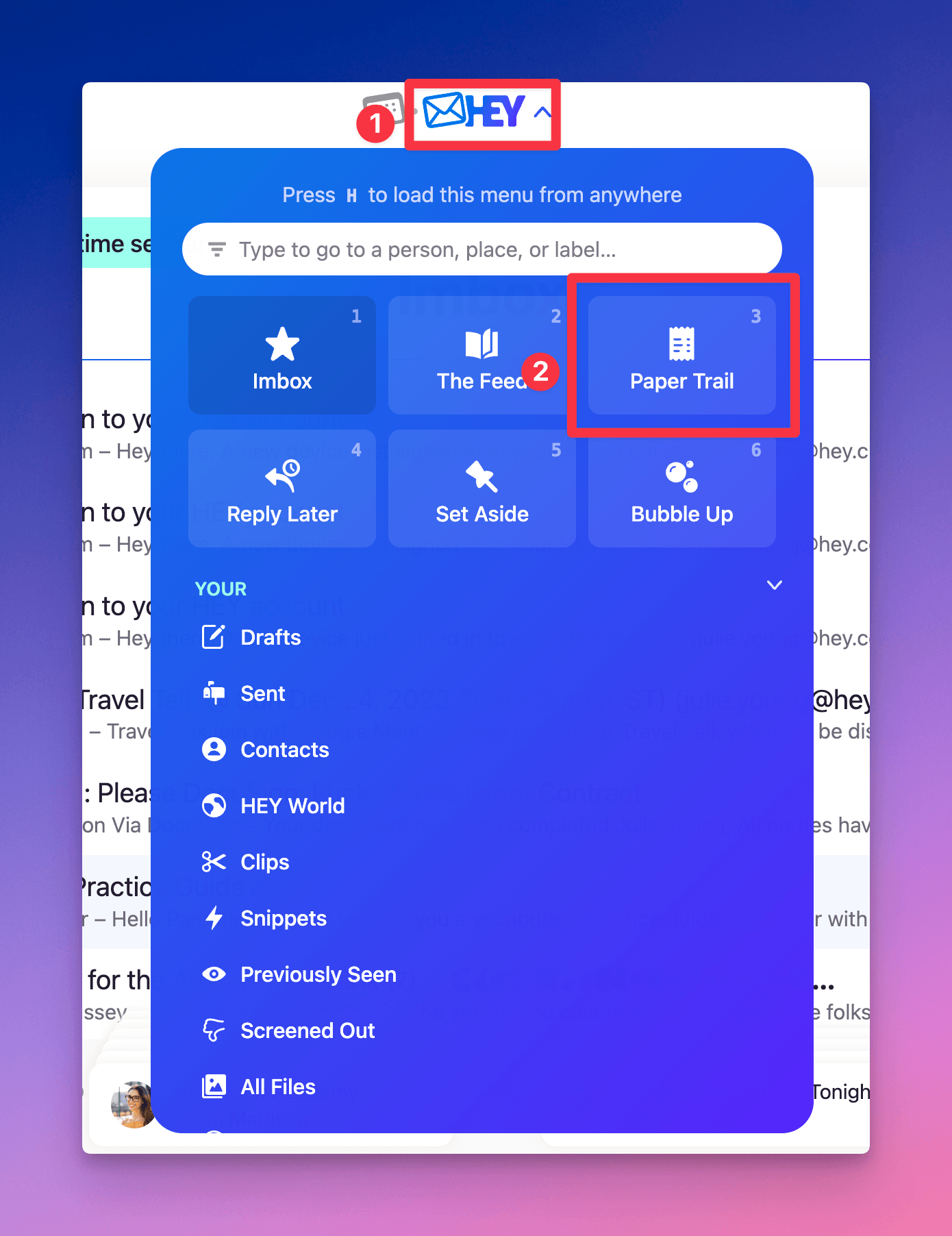
Press 3 or open the HEY menu and select Paper Trail to view your emails.
A contact’s Recycling settings still apply when their emails are moved to Paper Trail. Moving emails there won’t prevent them from being recycled.
Sending a contact to Paper Trail
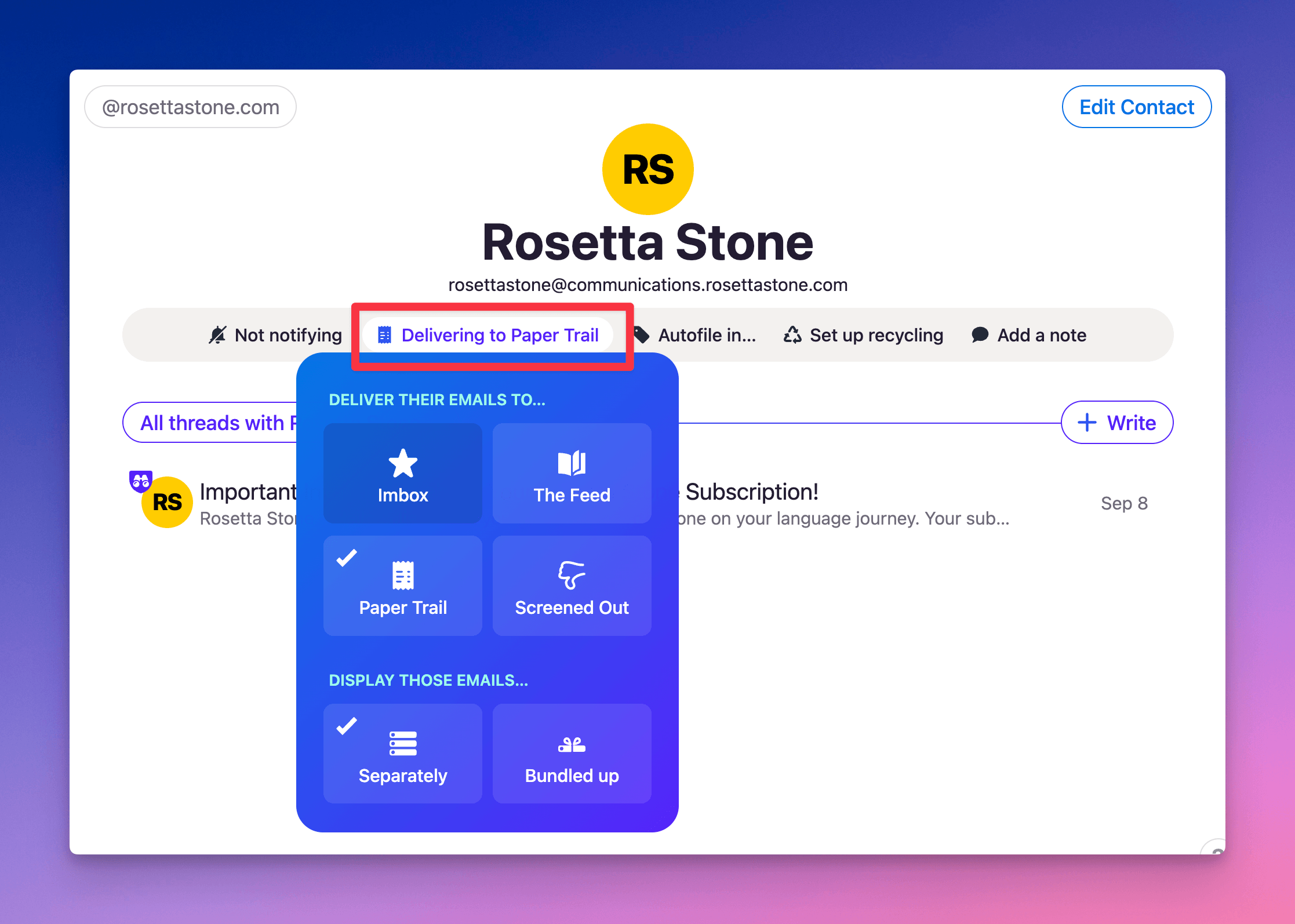
Set all emails from a contact to go to Paper Trail automatically.
- Open the HEY menu and select Contacts
- Select the contact
- Click Delivering to beneath their name
- Select Paper Trail
Moving a contact out of Paper Trail
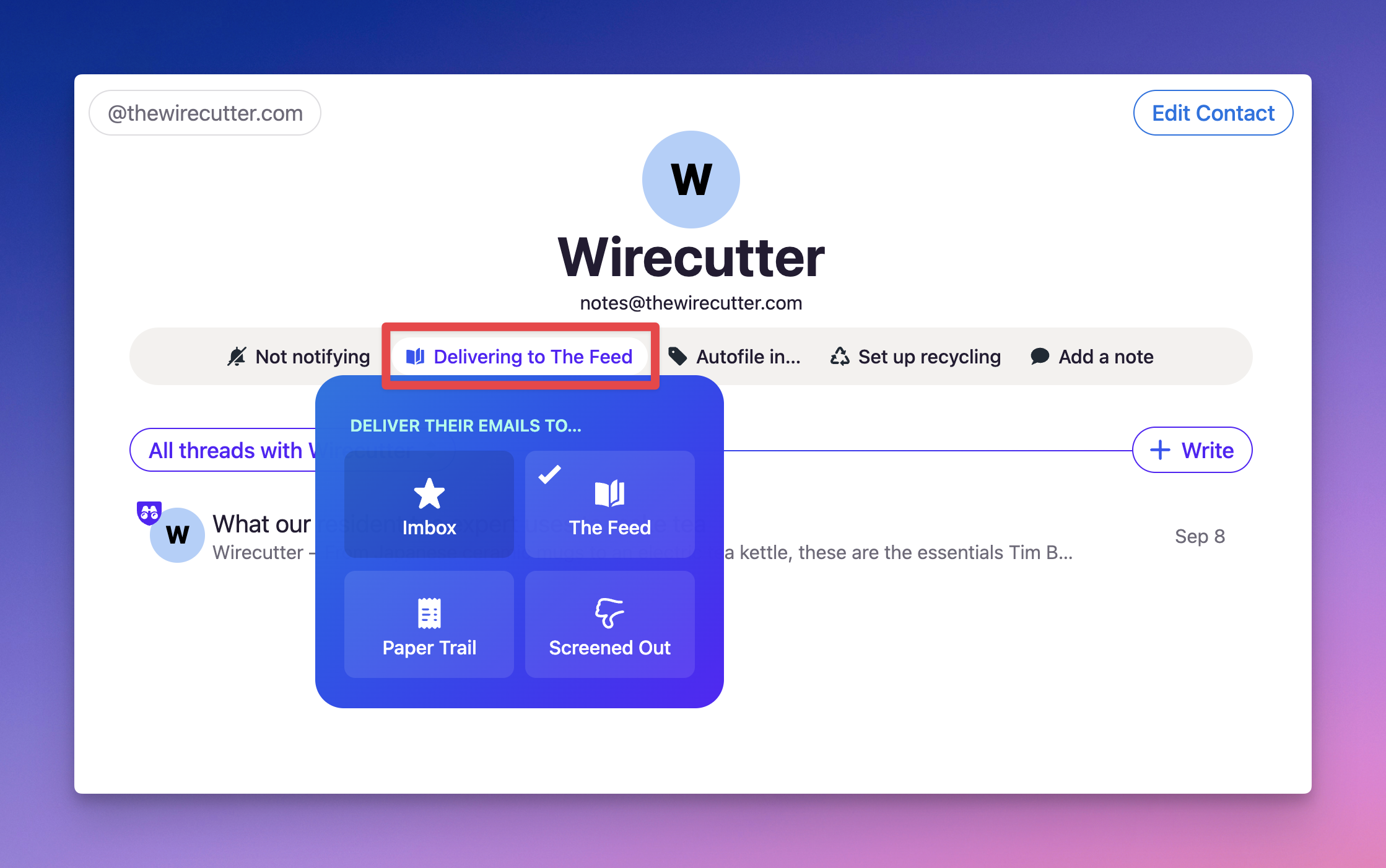
Change where a contact’s emails go from Paper Trail to the Imbox or The Feed.
- Open the HEY menu and select Contacts
- Select the contact
- Click Delivering to beneath their name
- Select Imbox or The Feed
All existing emails from that contact move to the new destination and future emails arrive there too.
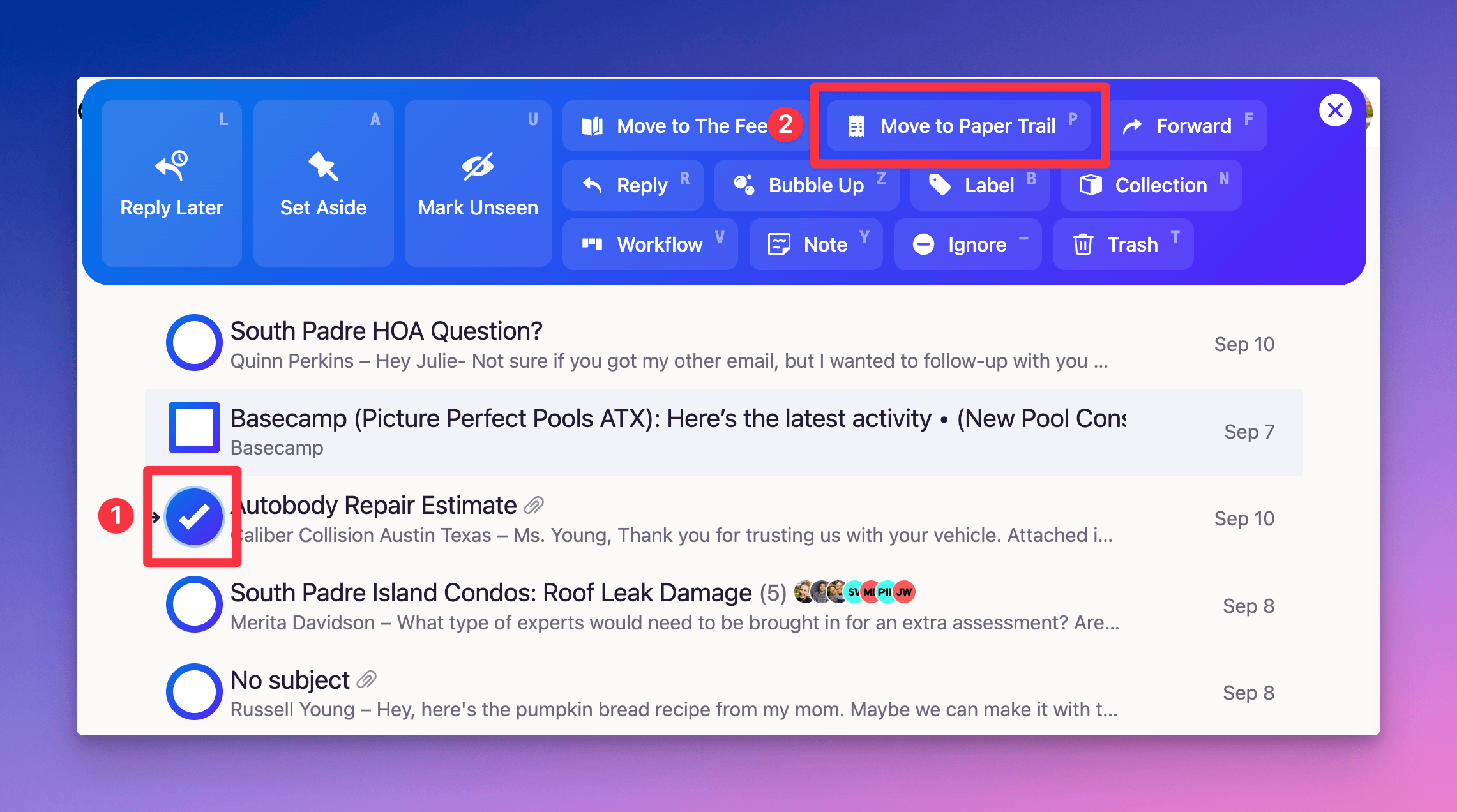
Moving a single email
Move an individual email to Paper Trail without changing where future emails from that sender go.
- Click the sender’s avatar at the beginning of the email’s row
- Select Move to Paper Trail